Aug 26, 2026
How to Port Your Phone Number to EasyRinger
If you’ve found the perfect phone number — maybe one you discovered through EasyRinger’s vanity number search — but it’s currently tied to another provider, you don’t have to give it up. Number porting lets you bring that number to EasyRinger and keep using it with all the features you already rely on, including call forwarding, SMS, and voicemail.What Is Number Porting?Porting is the process of transferring your existing phone number from one carrier or provider to another. The number stays the same — only the provider changes. EasyRinger supports porting landline, toll-free, and cell numbers, so whether you have a local business line or a 1-800 number, you can bring it with you.Finding the Right Number FirstBefore porting, it’s worth making sure you have the best number possible. EasyRinger’s vanity number search lets you look for numbers that spell out a word or phrase — the kind that customers remember without writing it down. If you’ve spotted a great vanity number at your current provider and want to bring it along, porting makes sure it moves with you.How to Port Your Number to EasyRingerThe process has three steps:Download the Letter of Agency (LOA) for your region from the EasyRinger porting page and fill it out.Email it to support@easyringer.com along with a recent phone bill or invoice that shows your name and number. If your current provider requires a PIN (often the last four digits of your SSN for U.S. numbers), include that too.EasyRinger reviews the submission and completes the transfer. Most ports come through in 5–10 business days, though the timeline can vary depending on your current provider.The one-time porting fee is $30.Will There Be Any Downtime?No. EasyRinger coordinates the transfer to minimize any interruption. You won’t notice the switch happening.What Numbers Can Be Ported?EasyRinger accepts landline, toll-free, and cell numbers. LOAs are available for the United States, Canada, United Kingdom, and Australia (both mobile and local numbers). If you’re porting a number out of EasyRinger to another provider, that’s supported too — there’s a $10 fee and the transfer typically completes in one to two weeks.Ready to Port?Visit the EasyRinger porting page to download the LOA for your country and kick off the transfer. And if you haven’t locked in your perfect number yet, the vanity number search is a great place to start — you might be surprised what’s available.

Jul 28, 2026
Get a Vanity Phone Number: Make Your Business Easier to Remember and Call
Ever call a business and forget the number five minutes later? A vanity phone number fixes that. Instead of a random string of digits, a vanity number uses letters or a memorable pattern that customers can recall without writing anything down. With EasyRinger's number search tool, finding and claiming one of these numbers for your business takes just a few minutes.What Is a Vanity Number?A vanity number is a phone number that spells out a word, name, or memorable pattern using the letters printed on a standard phone keypad. Classic examples include 1-800-FLOWERS or a local number ending in something like -PIZZA. Because each letter maps to a specific digit, a vanity number is still a real, dialable phone number, it's just easier for people to remember than ten random digits.For a business, that difference matters. A memorable number shows up in word-of-mouth referrals, sticks in a customer's head after they see it on a billboard or truck, and can even reinforce your brand every time someone dials it.How to Search for a Vanity Number on EasyRingerTo get started, head to the Buy a Virtual Number page and select a country. On the next step, you'll see two ways to refine your search: Location or Vanity. Choose the Vanity tab to search by letters and numbers instead of area code.In the Vanity field, enter the letters or digits you want your number to include. Use an asterisk as a wildcard for any digits you don't care about. For example, searching *PIZZA will return numbers ending in the digits that correspond to P-I-Z-Z-A on the keypad, and 706*BEACH would look for a number that starts with 706 and ends with the letters for BEACH.Once you hit Next, EasyRinger displays a page of matching numbers, each shown with its area, region, and supported features like Voice, SMS, and MMS. You can page through the results using the arrows in the top right if the first set doesn't have the one you want.Choosing and Claiming Your NumberClick any card in the results to select it, it will highlight to confirm your choice. From there, continue through the remaining steps to enter your email address and complete the purchase. Your new vanity number is ready to use as soon as checkout is complete, and you can set up call forwarding, SMS, and voicemail just like any other EasyRinger number.Who Should Get a Vanity Number?A vanity number is a good fit for any business that wants to be easy to find and easy to remember. Sales teams use them on cold-call campaigns, local shops use them on signage and delivery vehicles, and marketing teams use them to make ads and radio spots stick with an audience. If word-of-mouth and brand recall matter to your business, a vanity number is a small change that can make a big difference.Give the vanity number search a try next time you need a new line, you might be surprised what's available.

May 13, 2026
Introducing Organization Users: Manage Your Team on EasyRinger
We're excited to introduce Organization Users, a new feature that lets you add team members to your EasyRinger account and assign them their own dedicated phone numbers. Whether you're running a small business, a sales team, or any organization that needs multiple people managing separate virtual numbers, Organization Users makes it simple to coordinate everything from one account.
What Are Organization Users?Organization Users are sub-accounts that belong to your main EasyRinger account. As the account owner, you can invite team members by email and assign each of them a specific EasyRinger phone number. Once they accept their invitation and log in, they can fully manage their assigned number — handling calls, messages, and settings — all without any access to your other numbers or account details.Think of it like giving each person on your team their own dedicated business phone line, all managed under one roof. You stay in control of the account while your team members handle the day-to-day communications on their assigned numbers.How to Add an Organization UserTo get started, navigate to Account > Organization in your EasyRinger dashboard. You'll see a list of your current organization users, along with two options to add new ones: the "New" button to add a user manually, or the "Upload" button to import multiple users at once via a file.
When adding a new user manually, just click the "New" button. A simple form will appear asking for the new user's first name, last name, and email address. Hit "Invite" and EasyRinger will send them an invitation to join your organization. Once they accept, their status will update to "Active" and they'll be ready to use their number.If you need to add several users at once, the "Upload" option lets you bring in a list in bulk, saving you from adding them one by one.Assigning a Phone Number to a UserOnce a user has been added to your organization, you can assign them a specific phone number from your account. In the user's profile, you'll find an "Assignments" section with a dropdown to select their dedicated number. From that point on, the number will show as "Assigned" in your Numbers Setup page — and only that user will be able to manage it.
Managing Your Organization UsersAt any time, you can view, edit, or remove users from the Organization page. Each user's profile shows their personal information, the date their invitation was sent, and when they accepted it. If you need to update a user's name or email, just click the edit icon next to their name in the list.If a user leaves your team or no longer needs access, you can remove them from the organization. Their number will then be freed up for reassignment or management directly from your account.Who Is This Feature For?Organization Users is designed for anyone running a business or team operation where multiple people need their own virtual phone numbers. Some common use cases include sales teams where each rep needs a dedicated line, small businesses with customer-facing staff, and any operation where you want to keep personal and professional numbers separate across your whole team — all without needing multiple standalone EasyRinger subscriptions.
We think Organization Users is going to make EasyRinger a much more powerful tool for teams. Give it a try and let us know what you think!

Mar 4, 2026
New EasyRinger UI for 2026
We're excited to announce the completion of the new EasyRinger user interface (UI) for 2026. This is our first major update since 2020. We've been rolling it out in stages and, today, it's complete. The new interface gives a modern look to EasyRinger. It will also help us release future UI updates more quickly as we release new features. We hope you like it. Please feel free to share your feedback and make suggestions. We're always happy and willing to listen.

Mar 10, 2025
Why is my subscription account suspended?
In the early 2020s, the rate of fraud and spamming in the mobile telecom and VoIP industry increased substantially. EasyRinger strives to provide a platform that is safe and free of voice and messaging abuse. For this reason, subscribers may see that their subscription has been suspended for an investigation. This article aims to help subscribers understand why and how to avoid these suspensions.EasyRinger offers three subscription plans:StandardProPro BusinessThe "Standard" plan is intended for individuals and therefore is intended for usage that is reasonable for an individual. If your calling, messaging, or spending is excessive, an standard subscription may be suspended. If you are suspended for excessive usage, consider moving to a Pro plan. If you are not a business, you may need to provide additional verification in order to increase your allowed usage.The "Pro" plan is intended for small businesses who want to take advantage of everything that a virtual number and international calling and messaging service offers. Submitting business documents for verification will give you opportunity for higher usage.The "Pro Business" plan allows you to submit business documents for verification which will allow business-level usage. Pro Business subscribers also can take advantage of A2P (Application-to-Person) messaging to customers in the United States. For more information, see our post on A2P.

Jan 16, 2025
The Pro Business Plan Is Now Live
We are excited to announce that our Pro Business plan is now live! This is a big step forward as we work to make our platform more flexible and powerful, helping businesses scale their messaging efforts. Who Can Access the Pro Business Plan Right Now?At this time, the Pro Business plan is only available to existing subscribers. But don’t worry, we are planning to make this a signup option as well.What’s New in the Pro Business Plan?Here’s a quick overview of the features and benefits available with the Pro Business plan:Exclusive A2P Tab for Pro Business SubscribersOne of the key features of the Pro Business plan is the A2P (Application-to-Person) messaging tab . If you're on the Pro Business plan, you’ll be able to manage and monitor your A2P campaigns directly from this tab, giving you more control over your messaging strategies.One A2P Campaign IncludedWith the Pro Business plan, you get one A2P campaign included in your subscription. This is an essential feature for businesses that rely on high-volume SMS messaging. It ensures that your messages comply with industry regulations, making it easier to send large-scale communications without the worry of compliance issues.Additional A2P CampaignsNeed more than one A2P campaign? No problem! You can add extra A2P campaigns for just $20 per month. This pricing may be adjusted in the future as we refine our process and consider the costs of application fees and regulatory requirements.Call Queues (coming soon)Useful for support agents and marketers, call queues will allow subscribers to direct incoming calls to different agents as well as importing outbound call campaigns.

Jul 18, 2024
Customize your voicemail
EasyRinger now lets you customize your voicemail to your liking. You can even use text to change the message that your callers will hear. EasyRinger uses an evolved text-to-speech engine that provides the most natural sounding response available. Here's a summary of the features that are available:Enable or disable voicemail. If you don't like voicemail, just uncheck "Enable voicemail" and your number will ring until you answer.Set the voicemail timeout. Do you want voicemail to answer right away? Set your timeout to "0". Or set it to something more standard, like 40 seconds.Voicemail greeting:Type a simple greeting in plain English (we are looking into supporting other languages) and that message will be read to your callers. You can also select the language for the greeting to be read in so that the pronunciation is correct.Upload an mp3 file to play as a greeting.
Have another feature that you'd like? Please log in to the EasyRinger console and submit your ideas.

Jul 4, 2024
What is A2P? An EasyRinger Guide
The virtual phone number industry is in constant flux, and 2023 brings a pivotal change with the USA's implementation of A2P (Application to Person) regulations (also known as A2P 10DLC) and the emphasis on A2P compliance. It’s important to note that, for now, this only impacts the USA, and if you don’t send or forward to the USA, you do not need to worry about this. However, it’s likely that countries like the UK or Canada will follow this standard soon, though there are no dates planned.If you're deliberating, "What is A2P, and how does it affect my operations?" look no further. We're committed to illuminating the nuances of these regulations, ensuring you're aligned with the latest in A2P compliance standards.Why Should Our Subscribers Care About A2P Compliance?As we progress into 2023, the USA is ushering in robust SMS text messaging regulations under the banner of "A2P" (Application to Person). The core drive behind A2P is to clamp down on spam and misleading messages. What's crucial for EasyRinger subscribers to note is that platforms like EasyRinger fall squarely into the A2P category. Customers must register both the business and its SMS campaigns, ensuring transparency about their text messaging intent. Introduced in 2022, these regulations are becoming more strict. By Fall 2023, any message dispatched on A2P platforms to USA recipients will hit a wall unless backed by an A2P registration.Breaking Down the Basics: What is A2P Messaging?A2P stands for Application to Person messaging, and it's rapidly becoming a buzzword in the business world. So, "what is A2P?" you might ask. Simply put, it allows a company's software to send text messages to a USA customer's phone.You might have experienced A2P without even realizing it. Have you ever received a promotional code from a favorite brand? How about a notification from your bank about a transaction? Or perhaps an appointment reminder from your service provider? All these interactions are prime examples of what A2P messages can do.But here's the real appeal for savvy business owners: the efficiency of text messaging. A staggering 98% of text messages are opened and read. So, when pondering over "what is A2P?" and its relevance to your business strategy, know that A2P messaging isn’t just a trendy term; it's a potent tool promising reach and results.The Information Required Depends on Your Business StatusYour journey into this new A2P realm hinges on one pivotal question: Do you run a business with a Tax ID in the USA or Canada? But worry not. Even if you don't have a Tax ID, you can still register. The essential thing to remember is that your use cases must always revolve around a business or a service. Let's delve deeper for clarity.If You Have a Business Tax ID:If you have a USA or Canadian business tax ID, EasyRinger has specific information requirements for you to navigate the A2P landscape. Here’s what we’ll need from you:Personal Details: Your role in the company as well as your first and last nameKey Business Communication Channels: Email and phoneYour Business Hub: Full address, including postal code and countryYour Company’s Identity: Its legal name, website, business entity type and market segmentFiscal Essentials: Country of registration and Tax ID/EINSMS Campaign Details: Name, Description, and Intent (will they include phone numbers or links?). Additionally, please provide a glimpse into sample messages. We also need to understand how your end-users consent to receiving messages.If You Don't Have a Business Tax ID:For those stepping into the A2P world without a USA or Canadian business tax ID, you are considered to be a sole proprietor and follow a slightly different registration procedure. Let's break down what you need to know and how to get started.1. Providing Your Business Address Details:Street Address: The official location of your company.City & State: The administrative division and city where your business is located.Country: Currently, only businesses situated in the USA or Canada are eligible for this process.Postal Code: Your business's official postal code.2. One-Time Password (OTP) Verification:Purpose: The US telecom sector is ensuring text messaging remains a trusted medium, free from potential misuse.Procedure: Authenticate your identity with a one-time code sent to your phone.Note: Please use your personal number for this verification; EasyRinger numbers are not accepted.As a sole proprietor diving into the A2P scene, there are a few restrictions that you will encounter:You're limited to one SMS campaign.Your campaign should stick to just one phone number.Your messages will be sent out at a pace of one per second.Peering into the Future and Navigating A2P RegulationsAs the USA spearheads the A2P regulations, Canada watches closely. Given the historical ties between Canadian and USA telecom sectors, Canada might soon adopt similar A2P measures. The UK already has restrictions on certain inbound international messages and will likely introduce A2P in the future.For EasyRinger subscribers, comprehending these A2P regulations is crucial. We're dedicated to helping you decode, adapt, and remain compliant with these ever-evolving standards. In a rapidly changing digital landscape, knowledge equips you with power. With EasyRinger by your side, stay informed and confidently navigate the future of messaging!

May 25, 2024
Make Calls From Your Browser
We are thrilled to announce a new feature: Placing a phone call directly from your browser. Using this feature, you can be comfortably seated at your laptop with your headset and microphone and make all the calls you need from the EasyRinger dashboard. There's no need for a destination number, just an internet connection.Start your call by clicking/tapping on the new button that appears on your number card:
The new user interface will then expand and you'll be able to select the country of the number then enter the number that you want to call, very similar to how you current make an outgoing call on EasyRinger:
When you use the "Make a Call" button, EasyRinger will call directly out to the number that you entered. Make sure that your audio is already working on your device. You'll soon be connected to the number that you want:
To end the call, simply use the red "hangup" button. The call will then end and the user interface will shut down. Likewise, if the callee hangs up first, the call will end and the user interface will close automatically.

May 14, 2024
Are you interested in privacy?
EasyRinger is a great option if you want to keep your real number private. It's more expensive to switch out a real number with a SIM card or one tied to a contract, but it's easy to switch out an EasyRinger number. To keep your number 100% private, make sure you set your voice options to look like this:
The most important option here is the second one, "When I calld, show people who answer my call...". If you set this to "This EasyRinger Number", then people you call will always see your EasyRinger number and not your personal number that is handling the call.Likewise, give people and organizations your EasyRinger number rather than your personal number. If you want to know when someone has dialed your EasyRinger number rather than your personal number, be sure to set the "When someone calls my number show me..." option to "This EasyRinger number". This way, you'll know that someone is trying to reach you on your EasyRinger number.What happens if you start getting too many unwanted calls on your number? You have two options:Set up an allow or a block for your numberJust switch out your EasyRinger number for a new one

May 5, 2024
New Voice and SMS Options
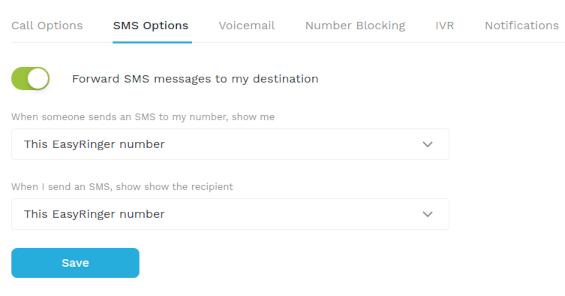
EasyRinger now offers more granular control of how you handle forwarding of your calls and messages. Previously, if you didn't want to forward a call or message, you simply deleted your destination number. But, what if you want to forward calls but not messages? We now let you control whether you forward your calls or your messages - and you don't need to ever delete your destination number to take advantage of this.Many subscribers like to save money by not forwarding their messages. This often will result in free or near free messaging on your EasyRinger number. You can receive your text messages in email or just monitor your SMS history.To not forward your text messages or your calls, just click/tap on the gear icon next to your number in the EasyRinger dashboard. That will let you configure your EasyRinger number. The first tab you will see is the "Voice Options" tab, the second is the "SMS Options" tab. Use the "Forward SMS messages to my destination" button to turn on or off your forwarding.

Apr 13, 2024
Both Legs Shown in Callback Billing Records
We have changed our billing system to show you both legs of a callback. A callback is when you use the EasyRinger service to make an outgoing call. To summarize, when you instruct the EasyRinger service to call a number, the service will first call your destination number, then, when you pick up, will dial the number you want to call and connect the two.As a result, there are two legs of the call: one from the service to you and the other from the service to the party you wish to call. Previously, the EasyRinger billing system rolled these two legs into a single billing record. Now, you will be able to see both and the status will show "callback" so that you can easily associate the two together. This way, you'll be able to see the charge for both legs of the call.

Nov 2, 2023
Access Callbacks from the Web
The callback feature available from the website. Just log in to EasyRinger with your email address and password. As usual, you'll see your phone number(s) right there in front of you. On the right, you used to only see the "Set Destination" and "Remove" links. Now, you'll see "Callback" there as well.
When you click on the "Callback" link, you'll see a dialog pop up that is similar to the "Set Destination" dialog: Make a call with the EasyRinger callback service.
All you need to do here is select the country where your number is located and then type in the phone number (without the country code). For example, for a USA number, you would type in the area code, then the seven-digit number. The "1" is added by choosing "United States (+1)". Then, click the "Place callback" button. A message will pop up that tells you that the EasyRinger automated callback service will first call you, then connect you to the number that you wish to call. So stand by for an automated call from EasyRinger!If you have multiple numbers, it matters which "Callback" link you click on. After you enter the number you want to call and click "Place Callback", the automated EasyRinger callback service will call your destination number corresponding to the "Callback" link's row. Your virtual number isn't even used for callbacks - only your destination number and the number that you are calling.

Oct 23, 2023
Block Numbers & Allow Numbers
EasyRinger now offers a super easy way to block unwanted calls. To access these options, click/tap on the little "gear" image next to your number in the EasyRinger dashboard, then select the "Number Blocking" tab.Number blocking or number allowing is simple. First you need to decide if you want to allow number or block numbers. If you block numbers, select the "Block Numbers" radio button. Then, any number the matches the calling number will be blocked. All other numbers will be allowed. If you want to only allow numbers, select the "Allow Numbers" radio button."Allow Numbers" is much more restrictive. For example, if you select "Allow Numbers" then add one number to your list, then only that number can call you. Every other number will be blocked. Use this if you know that only certain numbers should call you and you want to remove any excess calls.(Above) In this example, only 19701234567 can call my number."Block Numbers" is useful if you have some particularly bothersome numbers that won't stop calling. Simply select "Block Numbers" then add the offending numbers to your list:(Above) In this example, I'm blocking all calls from 19702221234 and all calls from China! (Nothing against China, it's just an example! :-)Note: You don't have to type the full number. If you enter "86", then you block all calls from China (since "86" is China's country prefix). If you enter "1970", then you block all calls from this area code in the USA.To remove a number, simply click on the "trash" icon and the number will be removed. You can have up to 50 blocked or allowed numbers.

Oct 19, 2023
Transcribe Voicemail to Text
EasyRinger Pro subscriptions now set up their voicemail to convert voicemails to text and send an email containing the text. At the bottom of your "Voicemail Options" tab, you will see this checkbox:
Voicemail transcription is the conversion of the voicemail audio track into written words to be stored as plain text in a conversational language. Voicemail transcription can be a useful tool for business, training, medical, or legal reasons. Text has more advanced search and analysis features available than audio. A text-based history of voicemails is necessary for many use cases.

Oct 11, 2023
Big Caller ID improvements
EasyRinger recently released improvements to caller ID. In the past, you had two Caller ID options:The calling number orYour EasyRinger numberWhile this covers most subscribers' needs, there's even more flexibility now: You can now set your caller ID to any EasyRinger number that you own. If you own multiple EasyRinger numbers, then you can use any of those other numbers as your caller ID for a given number. There are lots of uses that subscribers with multiple numbers can devise for this - maybe some of your numbers will use the same caller ID in order to distinguish a certain class of calls, for example. Another example is to use a caller ID in a different country to reduce the cost of your calls - look for more details on that in a future post!

Oct 9, 2023
Great news for subscribers forwarding to the EU
If you have noticed high calling rates when forwarding from overseas to the EU, there is now a legitimate way to avoid these higher charges: Use an EU number as your caller ID! That's all there is to it. Please note that you can't use any EU number - the number must be a confirmed and verified number. The best way to do this is to have a low-cost EasyRinger EU number (typically in the UK, since numbers they are the cheapest in the EU) that is used as your caller ID. Here's an example of how it works:Let's say that you have a US number and you forward to Germany. Because your caller ID is typically the calling number, the EU telco carriers notice this and bills you at an overseas rate. But, with this little trick, you purchase an EasyRinger in the UK and then set the caller ID for your USA number, to be the UK number. This way, when someone calls your EasyRinger number in the USA, your caller ID shows your UK number and the EU telco carriers bill as if you're calling within the EU. That's all there is to it!This is all made possible by being able to select any of your EasyRinger numbers as your caller ID, a feature that was recently released to all subscribers.

Jul 22, 2023
Set Up and Manage Your Caller ID
You can now choose what caller ID you see when someone calls your EasyRinger phone number. With caller ID, you have two choices:Your EasyRinger numberThe calling number"The calling number" is standard caller ID behavior. When someone calls your EasyRinger number, the call forwards to your destination and you see the number of the person who is calling you."Your EasyRinger number" will show you when your EasyRinger number has been dialed. This way, you can answer your phone in a particular way. For example, if you're starting a small business or running a test market, you probably want to choose this option.For callbacks (where you use EasyRinger to call out), the person being called will either see your destination number (if you've selected "The calling number") or your EasyRinger number.The "Caller ID" user interface is very simple. Just choose the option you want!

Jul 19, 2023
Ring multiple numbers at once
Would you like to have your EasyRinger number forward to multiple destinations - all at one time? This can be great if you need to have a high success rate for answering calls to your EasyRinger phone number. Just log in to your subscription and use the "+" buttons to add additional destinations. You can likewise remove destinations by using the "-" button. And,changing your destination is a simple matter of removing your current destination and adding another. We are supporting up to five destinations at once, and will experiment with more as needed.With multiple destinations, first one wins: The first destination to answer the call, takes the call. The other numbers will automatically hang up. Please note that there's a slight increase in price per call for each addtional number to ring. Ringing five additional numbers costs around an extra one and a half cents per call. Have another feature that you'd like? Please send us a message!

Apr 28, 2023
Understanding Your Invoice Data
Many subscribers have requested that their official information be present on invoices. We have now added this feature. To access it, log in to your EasyRinger dashboard and click/tap on the "Subscription" button. We have added an "Invoice Data" panel where you can enter your name, company name, and address. All fields are optional. Whatever you fill in will be present on all of your invoices.

Apr 27, 2023
Managing EasyRinger Notifications
We have added a new tab to the options interface for your EasyRinger number called: "Notifications". Here, you can set up how you would like to be notified of special events on your number. We are starting with the simplest: Email.In the past, all notifications went to your subscription email address. But, many subscribers with multiple numbers wanted to be able to associate a different email address with each number. That's only natural, especially if each phone number is assigned to a team member, for example.
Apr 21, 2023
Potential solutions to SMS problems
If you've noticed that your EasyRinger number is no longer forwarding your text messages to your destination phone number, you may need to adjust your SMS Options. Recently, in an effort to combat spam, many carriers have been denying forwarding of SMS messages if the carrier does not recognize either the source or destination number. This might happen if you have the "When someone sends an SMS to my number, show me" set to "The Calling or Messaging Number". To fix the problem, change the setting to "This EasyRinger Number". The carrier will recognize your EasyRinger number and allow the message to be forwarded.

Apr 19, 2023
EasyRinger Voicemail
EasyRinger offers a simple and flexible voicemail system. All numbers that support voice have access to voicemail. In the past, the EasyRinger voicemail system allowed you to type in text which would be read by an AI voice. We still have that, but now you can also upload an MP3 file to serve as your voicemail greeting.(Above) Here's an example of a simple voicemail system.Voicemail is enabled by default. But, in some countries, voicemail is not as popular. To turn off voicemail, just click/tap the "Enable Voicemail" button."Timeout" lets you decide when your voicemail picks up. The number (which is seconds) can range from "0" (which means the number won't ring but will go straight to voicemail) to "120" - two minutes.Under "Actions", you can use the traditional "Read Text" option or you can select "Play a File" to either select or upload an mp3 file. When creating your mp3 files, be sure to record in mono and encode with a lower quality setting. This will ensure that your voicemail picks up and runs as quickly as possible. There's no value in encoding in stereo at a very high bitrate.We now also support "Language", which is only available when "Read Text" is selected. Use this if you want the AI voice to read with the proper inflections and pronunciations in the language that you've entered. For example, greeting text that's in Spanish will sound a lot better when you select "Spanish" as the language. You can even select for regional pronunciations for some languages.

Apr 17, 2023
Ring Tone improvements
When forwarding your calls internationally, you may be familiar with a distinct change in ring tone. Many people don't think about this, but your callers with more international experience might recognize this as a switch to an international call. If your callers know you well, this isn't a problem. But, if you're trying to maintain a local presence no matter where you may be currently located, your callers might hang up before you get a chance to talk to them. To improve this experience, EasyRinger now uses a ring tone that is common and accepted to your phone number's country. Do you have an EasyRinger phone number in the UK? Then when your callers call your UK number, they will only hear the UK ring tone no matter where you forward your calls to.Most, but not all, of our numbers support this feature. If this is very important to you and you do not notice this improvement, then please contact support!
Feb 10, 2023
How to Send an SMS Message
You can send SMS messages with EasyRinger. First, log in to your subscription. In the "Actions" to the right of your EasyRinger number, you'll see a "Send SMS" button if your number supports SMS (older numbers do not support SMS). Click on the "Send SMS" button and you'll see the usual country select and phone number boxes. Underneath that, you'll see the box where you can type your message body. When you click "Send" you'll see a reminder message to let you know that your message will be queued immediately. Not long after that (usually just a few seconds), the SMS should appear in your SMS history.
Feb 1, 2023
EasyRinger 2.0 is Here!
Welcome to the new EasyRinger, aka EasyRinger 2.0! You can't imagine the excitement we have over this new release. Although there are lots and lots and lots of new features, we'll just focus on the two big and top-level important features available with this new release:Easyringer.com is now mobile-device-friendly. Go to easyringer.com on any device and it will look great. Small items will scale up on a mobile device. Large items will scale down. This includes both the public facing site as well as your subscription pages making it very easy to do normal tasks like update your destination, send SMS messages (more on that below), check your call records, and so on.SMS is now supported! Of course, this was the number-one requested feature and we're happy to offer it now. You can forward SMS messages to any destination number the same way that you forward calls. You can also send outgoing SMS message by logging in and using the "Send SMS" button next to your number.Signing up for EasyRinger and adding numbers to your subscription is pretty much the same, except you now can also see the capability of the phone number.

Jan 24, 2023
IVR - Interactive Voice Response menus
We're proud to have easy IVR menus ready for all of our subscribers. IVR stands for "Interactive Voice Response". (Though the word "voice" is in there, an IVR menu typically executes actions through key presses. In the first version of IVRs on EasyRinger, there is no voice support, but it's coming!)Everyone is, without doubt, familiar with IVR menus: "Thank you for calling <organization name>. For sales, press '1'. For technical support, press '2'" and so on. We've created a simple UI that lets you build your own simple IVR system with up to ten options. [caption id="attachment_333" align="alignleft" width="255"] The IVR user interface[/caption] Each phone number can have its own IVR menu. Like voicemail and other options, you can set up your IVR by using the "IVR" action to the right of your number when you log in to EasyRinger.In the IVR user interface, the first thing to do is check the "Enable IVR" option. This basically signals that your number will now ring straight to your IVR system. Your destination number will be ignored. And, your voicemail settings are ignored.The "Greeting" text is the very first thing that your callers will hear. You can type in the text that you want the system to read to your callers.There must be at least one action. Each action has a "Message" (which is typically something like, "For sales, press '1'.", and so on), a digit on the keypad (which needs to sync up with what's in the "Message"), and an action to take when the digit is pressed on the phone keypad.Right now, we offer three actions:Call number - when the caller presses the corresponding digit, will call this number.Voicemail - goes straight to voicemailRead text - reads additional text to the caller[caption id="attachment_334" align="alignright" width="300"] Available IVR actions[/caption] If you have multiple EasyRinger numbers, you can even chain IVR menus together by calling additional numbers that you own with their own IVR menu.We are planning to add additional actions to the three above. For example, "Play an mp3 file". Are there any other actions that you'd like to see?

Jan 1, 2023
The EasyRinger Blog
Welcome to the EasyRinger blogHere's what we're planning to add to our blog:- Regular Updates: We'll be posting regularly about our projects and insights.- In-Depth Articles: Expect detailed articles on a variety of topics.[Our Site](https://www.easyringer.com/)Best regards, The EasyRinger Team